How to add animated captions in Premiere Pro
AnyCaptions lets you create animated captions for Reels, TikToks and YouTube Shorts directly in Premiere Pro. It uses your existing transcript to time the captions and highlight each spoken word, with templates you can adjust to suit your video. You can change the fonts, colours and animation while you edit, without sending your video to another app.
Do you need a plugin for animated captions?
Premiere has built-in caption tools, including a Single Word layout in current versions. To use it, create captions from your transcript, expand Captioning Preferences, and choose Single Word under Layout. Style the resulting caption track using Premiere’s caption styling controls. See Adobe’s single-word captions guide for the supported workflow.
That is a useful option when you want one word to appear at a time. For a look with several words on screen, a highlight following the voice, and consistent pop or bounce entrances, this tutorial uses AnyCaptions to control those details together.
You will need: a Mac, Premiere Pro 25.6 or later, footage with spoken audio, and AnyCaptions installed. Windows is not currently supported.
1. Finish your edit and transcribe the speech
Choose a short section of a real project for your first attempt. Finish the dialogue cuts and set your sequence to the delivery format; for a vertical Reel or Short, that might be 1080 × 1920.
In Premiere’s Text panel, open Transcript and transcribe your talking clips or sequence. Listen through and correct names, brand terms and any misheard words before styling. A good-looking caption still needs to say the right thing.
Open Window → UXP Plugins → AnyCaptions, then click Get words from timeline. The plugin reads Premiere’s transcript and maps the words to your edit. You do not need to export the video to a separate captioning app.
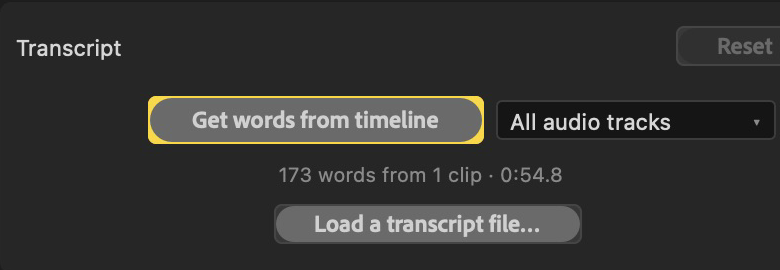
If no words appear, check that the speech has been transcribed and that the correct sequence and audio tracks are selected. The user guide covers transcript loading and setup.
2. Pick a template and set your word groups
Choose Bold Pop in Templates as a starting point, then set Words on screen to 3. Templates set the look and animation; word grouping is a separate choice.
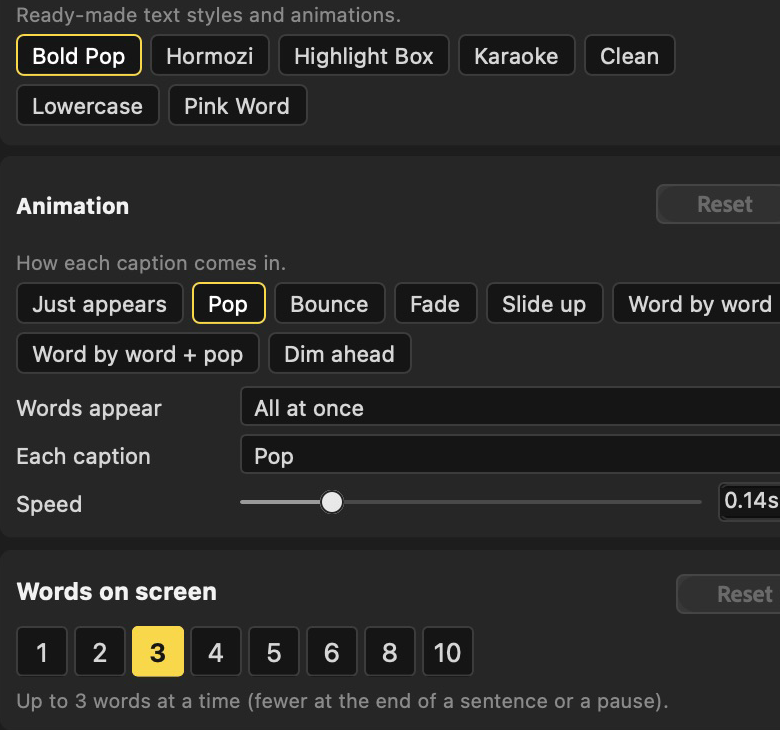
Three words is a starting recipe, not a rule. Try one or two for brief, emphatic phrases, or a larger group when the speaker needs room to finish a thought. Read the captions at playback speed: if you cannot comfortably finish a group before it changes, adjust it.
In the Captions list, you can fix wording, split a group after a chosen word, or merge it with the next caption. Keep words that belong together in the same group where practical.
3. Build a clear, repeatable caption style
For your first pass, use this recipe:
- Template: Bold Pop.
- Words on screen: 3.
- Text: a bold installed font, with white text.
- Outline: black, thick enough to separate the letters from the footage.
- Spoken word → Highlight: Colour, using one yellow or brand-colour accent.
- Animation → Each caption: Pop.
- Position: below the speaker’s face, with space around the bottom and right edge for the destination app’s interface.
Adjust text size while viewing the whole frame, then check a short export on your phone. The goal is to read the words easily without covering the expression or action that matters.
For a calmer edit, try Fade instead of Pop. For stronger emphasis, try Box behind it in the spoken-word controls. Change one setting at a time so you can judge what actually improves the look.
4. Add the captions and preview the animation
Click Add captions to sequence. AnyCaptions places a caption layer on a video track above your footage. Play the sequence and watch the Program monitor to check how each phrase enters and how the highlight follows the speech.
With Live update enabled, changes update the caption layer as you work. If it is off, click Update captions to apply your edits. Keep one entrance style through the sequence unless a change serves a specific moment.
You now have a reusable starting look: three-word groups, white text, a dark outline, a coloured spoken word and a pop entrance. Save your adjustments with Save current template… to reuse the style; choose your word grouping separately on the next project.
Want to try this on your own footage? Download AnyCaptions for Mac—free for 14 days. No card is required. Your trial starts when you first add captions, so you can install it before you are ready to edit.
5. Check timing, line breaks and placement
Watch once with sound to check the timing, then again muted to check whether the text is easy to follow. Pay particular attention to names, quick phrases, long words and captions that sit over a face.
If a caption needs a timing correction, open Edit beside it in the Captions list. Small timing nudges move the caption and its spoken-word highlight together. Split awkward groups or merge fragments where that makes the sentence easier to read.
If you recut the video, click Get words from timeline again. Review any notes about corrections, grouping or timing that could not be matched safely. If the edit becomes longer, check that the caption layer still covers the full section you want captioned.
6. Export your video—and an SRT if needed
Export your sequence from Premiere as usual. AnyCaptions’ visible text and animation render into the video, so viewers see the look you designed without needing to enable subtitles.
If your destination accepts a separate subtitle file, use Export .srt in AnyCaptions. An SRT carries text and timing; it does not preserve your fonts, colours, spoken-word highlights or animation. Keep the styled captions in the video and supply the SRT separately when your delivery requires it.
Before publishing, watch the exported file to check the first and last captions, spelling, timing and placement.
Frequently asked questions
Can I make CapCut-style captions without leaving Premiere Pro?
Yes. Short word groups, bold text, a spoken-word highlight and a quick entrance create that style. AnyCaptions combines those controls inside Premiere using its existing transcript. Start with the recipe above, then adapt the font and colours to your video.
Is showing one word at a time the same as highlighting each word?
They are different looks. Single-word captions replace the text as each word is spoken. Spoken-word highlighting keeps a group visible and changes the emphasis within it as the voice moves through the phrase. Choose the one that is easier to follow for your footage.
Can I change the style after adding captions?
Yes. Adjust the font, colours, animation, position or words on screen in AnyCaptions, then preview the result with Live update or apply it with Update captions. You can also correct text in the Captions list.
Is AnyCaptions free?
AnyCaptions has a 14-day free trial with no card required. Continued use after the trial requires a subscription. Check current pricing before choosing a plan.
Try it on your next short
Start with one clip, one template and one highlight colour. Get the words readable and the timing right, then add just enough motion to suit the speaker.
Download the 14-day Mac trial to follow the tutorial on your own project, or open the AnyCaptions user guide for detailed controls and troubleshooting.